OLfix - Office Outlook repair tool | Freeware
for Office Outlook
|
|

Editorship valuation of
“WinTotal - The Windows Portal”: Outstanding!
|
OLfix is a cost free tool which repairs Outlook profiles
and more
|
OLfix
combines some tools for repairing common things like the
profile, contact links and features, for example calling
the internal Outlook repair command line switches with a
click of a button. Also some hidden settings can be set
for example reminders in different folders.
Highlights:
-
Repairs
Outlook profiles
-
Repairs
Outlook contact links
-
Extends
reminder folders
-
Enables
Outlook address book in Outlook express and other
programs
-
Searches
of dupes in Outlook
System
requirements:
All windows versions and any version of Outlook. Outlook
97 - Outlook 2013, 32 or 64-bit.
OLfix:
Download Information

|
|
OLfix functions: 1. Repair Outlook profiles
|
|
Outlook
sometimes has problems with the profiles, if you for
example delete a data file while Outlook is running,
Outlook sometimes forgets to delete some registry keys.
At next start Outlook will try to load the deleted store
provider but will fail because some of the keys are
deleted and some not.
This
gives you sometimes double personal folders, double
OLfolders, double Exchange folders, slow Outlook start
and errors on startup.
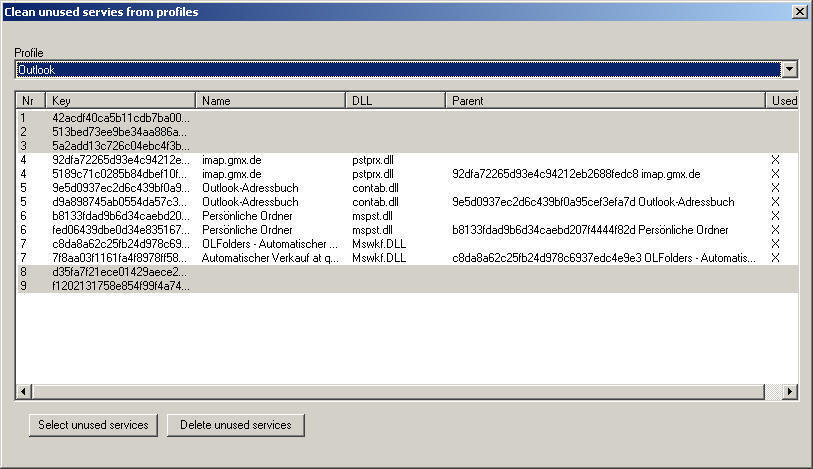
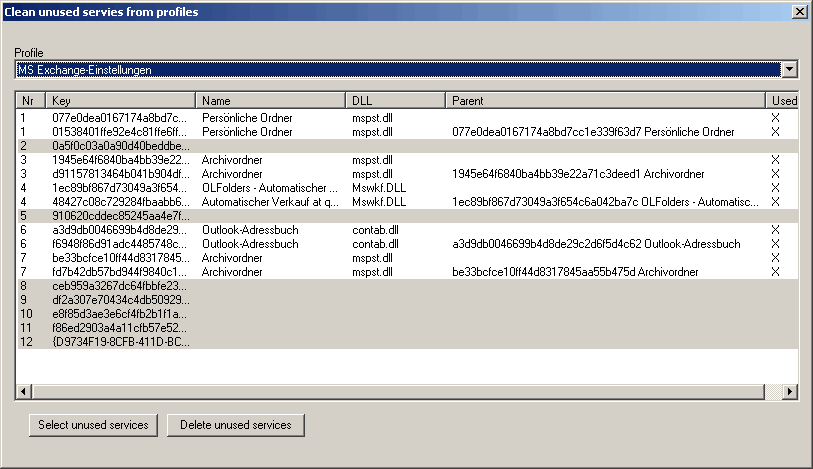
Open
repair profiles and select the profile you want to
repair. OLFix will display all registry entries for this
profile. Some of them are pre-selected, the pre-selected
entries usually can be deleted.
Most
data files require two registry keys, one main key and
one detail key. Exchange usually has one more than two
keys, the main key for Exchange and detail keys for your
email accounts, shared folders, personal folders,
delegates etc. If you find PST files, OLfolders files
etc. with only one key or with more than two keys, they
usually are damaged.
 Click to enlarge / Back - click on
your Browser "Back" button.
Click to enlarge / Back - click on
your Browser "Back" button.
It
seems that Outlook loads deleted services at startup
this:
•
Slows down the Outlook start
•
Shows data files which are already
deleted, but you can not close them because the main key
is no longer present.
Because
OLfolders gives the same store entry ID for each
connection to the same file, it does not like the same
data file be present many times. If you for example have
30 references to the same file and the last one which
Outlook tries to load does not work because some keys
are already deleted or you have the wrong user name or
password, you only will see a file which is not opening
in Outlook.
Hints, Warnings
OLfix
is using undocumented registry keys, usually it works,
in some cases it may damage your Outlook profile. If
this happens re-create your Outlook profile in control
panel/mail. You may copy the profile before running
OLfix.
In most
cases where you run OLfix, re-creating the profile was
the only option anyway.
|
|
2. Repair contact links
|
|
In
Outlook, elements can contain links to contacts, Outlook
stores the entry ID of the contact. If you export the
file into a new one, the links will still point to the
old file, if that is not present, the contact link no
longer works. There may be other opportunities to damage
contact links. Outlook also stores some other
information about the contact, which allows us to find
the contact and repair the link.
Use
this function, if your contact links are not working any
more or after exporting your .pst file.
Hints, Warnings
Repair
contacts is using undocumented data structures. It is a
good idea to back up your data before using this
function.
|
|
3. Extend reminders folders
|
|
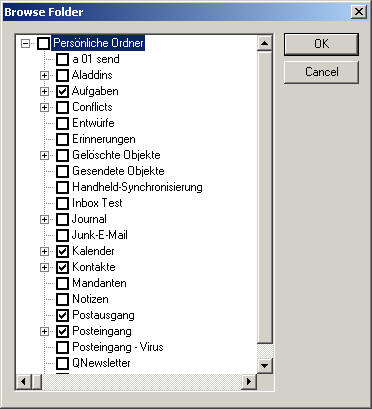
Outlook
displays reminders only in Inbox, Calendar, Contacts and
Tasks. If you want to have reminders in other folders,
for example in sub folders of calendar, in other email
folders, you can use this function.
Though
there is no interface in Outlook to do this, the
functions are document MAPI functions, this function is
not using any undocumented things.
|
|
4. Delete search folders
|
|
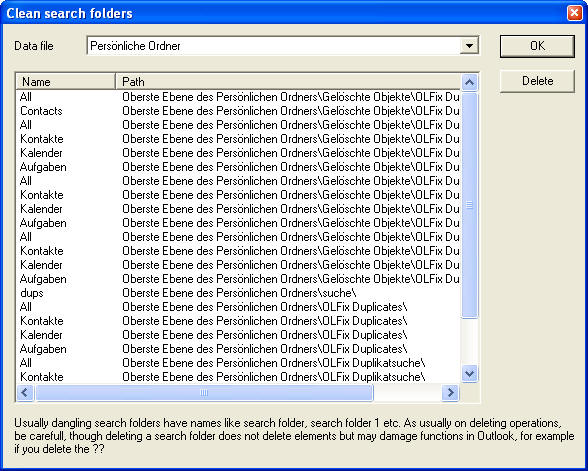
If Outlook crashes while you have a search folder open
or any search running (including activities) it will not
delete the search folder it has created for this search.
After 99 search folders, it will not create new ones.
Search Folders also keep searching your data file until
they are deleted, so each search folder will take some
computing time.
Please do not remove the standard search folders like
Reminders.
|
|
5. Change Message class
|
|
A
message class defines which Outlook form is used to
display data. For example the contact form is named
IPM.Contact. If you created a new contact form for your
customers, this may be named as IPM.Contact.Customer.
Now after creating a new form, the old contacts will
still open with old contact form until you change the
message class.
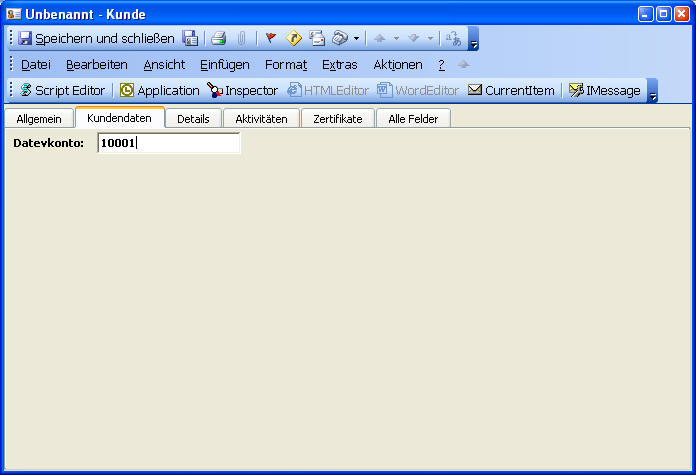
It is
easy to create a new contact (or any other) form in
Outlook, you do not even need to know anything about VB
scripting or programming until you want to do some very
special things.
-
Open the contact folder
-
Create a new contact
-
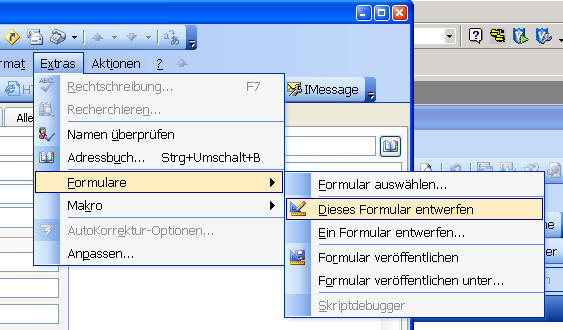
Select tools/forms/Modify to start
designing the contact.
-
Choose a free tab sheet (for example
S.2)
-
At the Actions menu, rename the tab
sheet
-
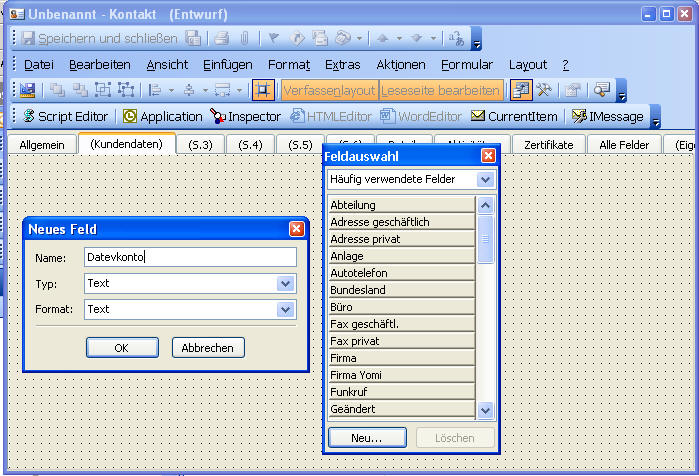
In the field window, create a new
field, for example customer number
-
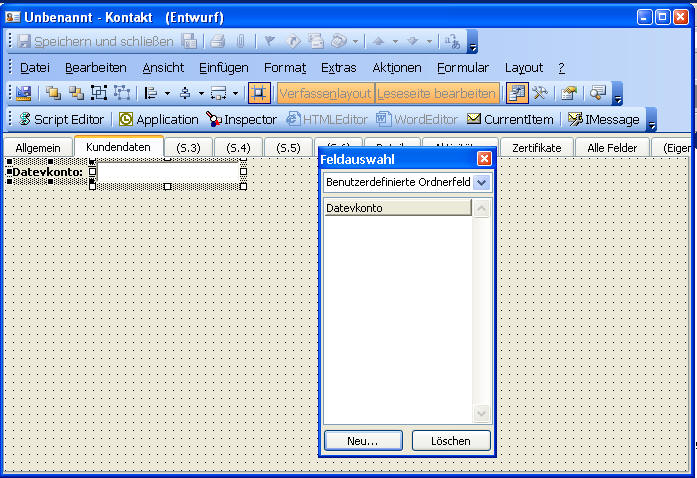
Move the field to the new page.
-
A new page with only one field is
somewhat boarding, but you can add more fields or
for example a picture. Find the toolbox window and
add an element from type Display, now right click
and select extended properties. You will find a
field where to choose the picture from.
-
Save the contact using
tools/forms/publish
This name is the message class, for
example IPM.Contact.Customer
-
You do not need to save your empty
form, it has been published (but before closing it,
try if you can instanciate a new element of this).
-
To create a new instance of your new
form, click in
Actions/New: Customer, this will open a new
empty form with your additional field.
-
In order to see the new field in all
existing contacts, use OLfix change message class on
the contact folder and modify IPM.Contact into
IPM.Contact.Customer.
-
If you like to edit the form
definition, start by creating a new element.
-
Use your form
If you
work in a network, all workstations will now have access
to the new form.
Hint:
If you have many versions of Outlook, edit the form
definition on the oldest one, newer Outlook can read the
old form definition, if older Outlooks can read a new
form definition, nobody knows.
|
|
6. Find duplicates
|
|
Innovative duplicates finder for Outlook.
The duplicates finder searches for different kinds of
duplicates in a file or in all files. It is always
searching in all folders available and all kinds of
objects (contacts, emails, tasks) etc.
OLfix can find three different kinds of duplicates:
-
Elements which are a copy of each other.
You copied a contact to a different folder. OLfix is
able to find this contact (this also applies to all
other elements).
-
Contacts by email
Finds all contacts with the same email address
-
Emails by Message ID
Finds all emails which have been received more than
once or have been copied.
We can not find elements which are equal by field
compare, for example if you entered the same contact
more than once, probably written a bit different.
After the search has been finished, you will see a list
of duplicate elements, which can be marked as duplicated
and then be displayed in a special Outlook search folder
will combine all elements of all folders and allow you
to easily open and delete the duplicate entries. We
currently do not delete duplicates, because usually if
you have duplicate elements, both of them are different,
for example if one instance has been updated. On each
pair, you must find out by yourself, which of the copies
you want to keep and which should be deleted.
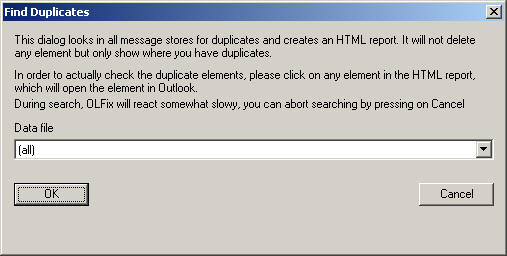
Picture 1: Selection of files

You have two options with duplicates:
1. Mark all duplicates with a flag so that they appear
in our search folders
2. Automatically move the items to a sub folder
1. If you mark your duplicates, nothing will be moved or
deleted, however all duplicate elements will appear in a
special search folder und "OLFix duplicates" in your
tree. You are now able to examine all duplicates and
manually
delete each item. If you delete the item in the search
folder, it gets deleted at the original position, so
please do not delete all items in the search
folder, instead move the search folder to the deleted
items folder if done.
2. If you choose to move the elements, OLfix will create
a structure under "OLfix duplicates" and move all
elements from the original position to that folder.
Below that folder it will create the same structure as
you have in your Outlook. Because this operation can not
be undone, please create create a backup of your data
before you are using this function.
You can find the position of your PST file by file/data
files in the property window. If you are using Exchange,
we recommend exporting the data to a PST file.
Cautions:
-
We will not delete any data, but we will move
elements from one folder to a different folder. You
may not be able to find your elements at the
previous position.
-
OLfix can not find out, which of the copies you
wanted to keep and which of the copies you wanted to
delete. Usually you must look at the results and
move some elements back.
-
Use this function at your own risk!
-
Please create a backup of your data before staring
automatic movement.
-
Instead of deleting the duplicates we moved to the
folder, we recommend moving them to an archive file.
You may discover later, that you made for example a
comment in an older copy of a contact.
Picture 2: Displaying duplicates
Click to enlarge / Back - click on
your Browser "Back" button.
The duplicate remover will only mark duplicate messages,
not delete them. you must actually do it. There are
other duplicate removers, which do it all automatically:
-
Cost free: Install our product
QSyncrchonization and
go to maintainance in the qsync tab of the properties of
any folder, there is a function for removing duplicates,
this will keep working even after expire date. It finds
duplicates only by ID.
-
Topalt.com deduper.
-
Outlook
Duplicate items remover
|
|
7. Automatically find and delete Extend.dat
|
|
Outlook nearly always forgets to update its cache for
extensions, which is stored in extend.dat if an
extension has been de-installed. You get an error
message about a missing DLL after de-installing any
application. Deleting extend.dat resolves this problem,
the cache will be re-built with the current settings
from the registry and the add-in directory.
If you still get an error message, try to find the
reference here:
c:\program files\microsoft\office\<your
office version>\add-ins
You should find an .ecf for the deleted extension, this
can be deleted
Registry:
HKLM\Software\Microsoft\Exchange\Client\Extensions and
HKCU\Software\Microsoft\Exchange\Client\Extensions
You should find a registry key here naming the name and
the DLL.
|
|
7. File extensions
|
|
Sets or re-sets blocked file extensions. Outlook does
not show or does not allow opening certain files, this
menu item can modify this
|
|
8. Outlook repair
|
|
Outlook can be started with some command line arguments,
however this not documented in the manuals but can be
found somewhere at the Microsoft technet sites and
various other sites. OLFix allows starting repair
options without typing
/CleanFreeBusy. Resets the free/busy
/Cleanreminders. Re-Creates the reminders folder
/Cleanviews. Re-Creates views
/CheckClient. Checks if Outlook is standard mail
client
/ResetFolders. Re-Creates the default folders
/CleanSchedPlus. Recovers calendar entries
/Safe. Start in safe mode.
/Cleanpst. In Internet-Mode: Creates a new profile with
PST file
/Cleanfinders. Re-Creates search folders at the Exchange
server
|
|
9. CALL scanpst, Repair the inbox
|
|
Outlook has a built in inbox repair tool: SCANPST,
however in each version of Outlook, depending on the
windows version and languages of Outlook and Windows,
the file is in a different directory. OLFix tries
to find SCANPST.EXE, calls it, enters the file name and
waits for the file to be checked, if there is an error,
it presses automatically the repair function.
If you do not wisth to call it automatically, just
disable the button and let OLfix start SCANPST for you
with the file name in the clipboard.
If OLfix is unable to find SCANPST.EXE, please copy it
to the program directory of OLfix.
|
|
10. Secret options
|
|
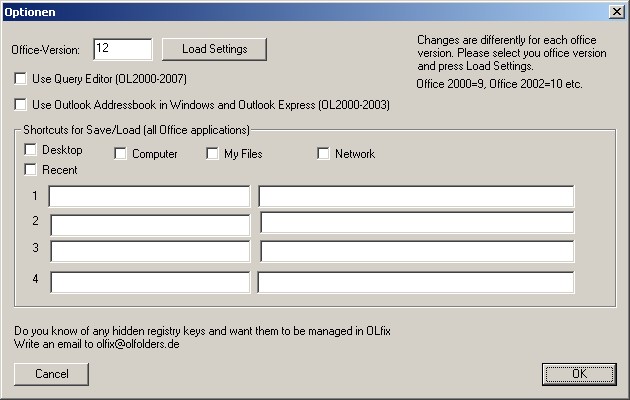
Turns secret options on or off.
-
Use Query Editor
Enables the hidden query editor in Outlook or hides
it.You find the query editor in the last tab in
advanced search.
-
Use Outlook Adressbook as Windows Adress book
In Windows prior to Windows 7, the windows
Addressbook was able to read the Outlook address
book, this way Outlook Express and many other
sofware where able to read and modify the Outlook
data without even knowing that the data comes from
Outlook
-
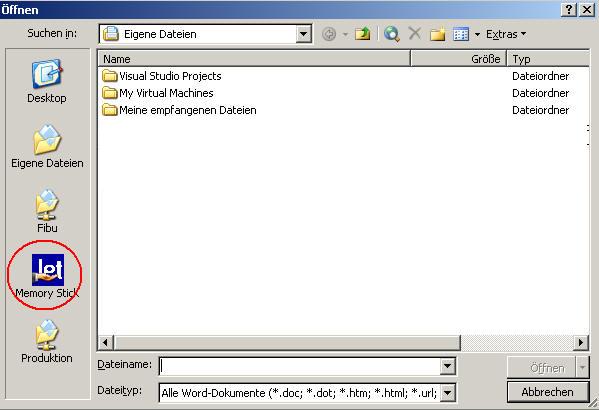
Modify shortcuts
The file open menu can display different shortcuts
in the right button pane, for example you can set up
your memory stick here or hide some of the default
folders.
In order to do so, you eventually must enter the
office version manually, Outlook 2000 is Office 9,
2002 is Office 10 etc. Each office version may have
different settings.
|
|
COPYRIGHT und
TRADEMARK
Microsoft und
Outlook und/or other Microsoft products are registered
trade marks of Microsoft Microsoft Corporation in the
U.S and other countries. All other trade marks are owned
by the manufacturers of the products.
|
|
Top of page
|
|
|
|


 German