1.0 General
1.1
How does sharing of Outlook folders work?
1.2
What happens to my personal data
1.3
Why can't I simply share my Outlook data
file at the server
2.0 Connection to Server
2.1
Where do I set up which files are shared?
2.2
How can I protect my data?
2.3
I can not delete elements but I have all rights for this
folder.
2.4
I can not connect to the server.
2.5
The server/Outlook sometimes crashes.
2.6
Can I connect via the internet?
2.7
I get the error message "user name or password
wrong
2.8
I can connect to the server but do not see
any data files
2.9
How do I set up the server as service?
3.0 Emails
3.1
How do I receive emails with OLfolders?
3.2
Is the server able to receive and send emails?
3.3
I can receive emails but not send
3.4
How can I manage common email addresses like
info@
3.5
What
is a mail proxy
3.6
Can I move my personal folders file to the
server?
3.7
Some
(all) users share the same email account.
4.0 Kalender
4.1
I want to share my personal calendar.
4.2
How can I create a group calendar?
4.3
I receive the message "the free busy data
at the server can not be saved"
4.4
Reminders
do not work in the shared folder
5.0 Synchronzation
5.1
QSynchronization
vanished from Outlook
Sharing Outlook folders works similar
to sharing disk drives, all data remains at the server it
is not replicated to the client, if a client connects to
the folders, the data remains at the server, if data is
modified it is modified directly at the server. The same
on disk sharing, if you connect to a shared disk, this will
not copy all data to your local hard disk nor overwrite
your hard disk, you simply can see and modify data at your
local disk the same way as you modify data at the shared
drive.
Instead of replicating data from the server
to the client, the client sends commands to the server,
asking for the contents table of a folder, sorted and groped
by a criteria and other commands to open, modify and save
data. All commands are executed at the server which then
sends the result to the client.
|
Comparision
|
Sharing Outlook folders
|
Sharing disk folders
|
|
Access
|
Accessing folders from any remote
Outlook does not replicate the whole file but sends
commands which are executed at the server, the client
simply displays the results.
You can continue to access your local personal folders
file.
|
If you connect to a remote disk drive,
this will not copy the whole disk to your computer
but enable you to modify data. The client will send
commands to the server and return the result to
applications opening files. You still can use your
local disk drive, the network drive is additionally
mapped to your computer.
|
|
Changes
|
All changes are made at the server,
and are visible at all clients immediately. This
happens with all kinds of changes, even if you move
a folder containing thousands of elements and sub
folders, all clients will see the result immediately.
It also does not matter how many clients are connected,
each one sees changes as they happen.
|
All changes are made at the server
which is sharing the data, all clients see changes
immediately is does not matter how big the change
is or how many clients look at the folder.
|
|
Protection
|
You can define user rights for profiles,
files, folders and individual elements.
|
You can define user rights for folders
and files.
|
|
Availabilty
|
The shared folders are visible as
long as the server is online, if you turn off the
server, you can not access any data. In order to
work offline - use:
QSynchronization
to synchronize elements.
|
You can access shared files as long
as the server is online, if the server is offline,
no access is possible.
If you want to use files offline,
use QSynchronization.
|
|
Topologie
|
You can have all data at a server
or many many computers share their data.
|
You can have all files at the server
or each computer is sharing some files.
|
Top of page
OLFolders maps shared folders into your
Outlook as additional folders, your personal folders are
still intact, also your email accounts will work normally.
If you like, you can move to server folders, only.
Outlook is locking the data file if it
accesses it. More precisely, MAPI is accessing the files
using a data base component allowing other applications
access to the data.
Technical background:
Lets pretend, we want to work at the same
text file with two clients, lets say with WinWord. For the
same reason as Outlook, WinWord does not allow tow clients
to modify the same document, lets pretend it works.
Now that two users opened the same document,
we have three copies: One at the disk, one in the memory
of each computer. If User A modifies the file, User B will
not see it, User A for example may delete a chapter, user
B is modifying the same chapter, what will happen if both
save the file?
Lets pretend, we want to write a text
editor which allows two persons modifying a document in
the same network. We can not share the memory via a network
because this will be very slow, also each computer will
lay out the letters, lines etc. differently in memory because
we need fast data structures, which linear text is not.
One solution is opening and modifying the text only at the
program which opened the text first (server) the second
one acts as client displaying results. Commands may be more
or less like this
Client: Open file xzz.doc
Server: Opens the file and returns OK
Client1: Give contents of page 1
Server: Sends the contents of page 1.
Client1: Displays page 1
Client1: Change word 3 in line 25 from
"this" to "that"
Server: Finds line 25 and changes the
word.
Server: Informs all clients, that line
25 is changed.
Client2: Checks if line 25 is at the screen
if yes, asks server for new contents of the line.
Though Outlook files are not loaded completely
into the memory but a lot of indexes are built. You can
see this on searching, the first search takes minutes, the
second search for the same thing takes less than a second.
Top of page
OLfolders shares all files which are visible
in Outlook, in any profile. In order to share a new or a
different file, just create or open it in Outlook or in
control panel/mail.
OLFolders allows protection of data in
4 ways:
- Disabling profiles
If you are using more than one profile, you can deselect
the profile the profile in the user manager, each new
file in the profile will not be shared. You may create
a profile called shared data and only allow access to
this profle
- Disabling files
The user manager also allows disabling certain files
in profiles
- Disbling rights in folders
Using folder rights, a range of rights can be assigned
to folders, for example disabling write access to element,
hiding sub folders etc.
- Disabling elements
Using user rights, opening individual elements, for
example private elements can be denied.
Deletion is moving into the folder "Deleted
objects". Check if you set up a user right on deleted objects.
In order to be able to connect to the
server, a network connection must be established, normally
the server uses port 20002 for connection via RPC and 22177
for NPC. One of the both ports must be set up to be not
be blocked at your firewall.
In order to find out, where the port is
blocking, try first to connect from the server to the server.
In Tools/Install OLFolders, enter the server name then try
to drop down the user name. If you fail with the servername,
try servername:2002, servername:20002, npc:servername to
see if one of them works.
If no network connection can be established,
the following error message will be shown:
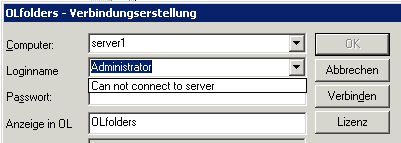
The error may be caused by:
- Server is not started or not connected
to the network.
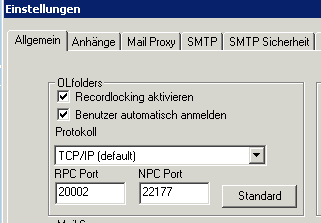
- The server uses a different port
than the client. Please check the port in tools/options,
then enter the same number in the connection dialog,
for example server1:20002
- If firewall is installed at
server or client, it may block either the port or OLWServer.exe.
You need to configure the firewall properly. While searching
the error, you may disable the firewall or all firewalls.
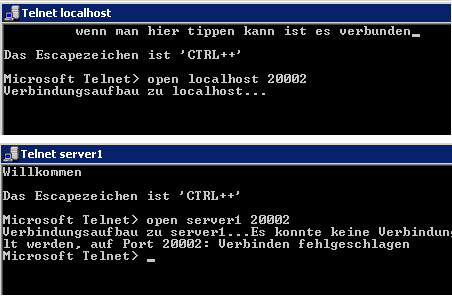
You may check connection with telnet, type "open servername
20002"
- Normally, OLFolders works with RPC
(Remote procedure calls), at some clients, RPC
is damaged, in this case you may use NPC, simply type
NPC:servername or NPC:servername:port
NPC (Network procedure calls) is a based only on sockets,
it is a protocol similar to RPC but not dependend of
any other DLLs.
Top of page
Some reasons for crashes are:
Yes, if the IP address of the server is
known and if your router is configured properly (port forward
of port 20002 to the computer running the OLFolders server).
- If you have a dynamic IP address,
use a dyndns provider to publish your ip address, for
example www.dyndns.org.
You also will need an application publishing your ip
address, some routers (for example netgear) are supporting
dyndns.org
- If you are using a router, you need
to forward the port (usually 20002)
- Protocol 2.3 is faster on internet
connections than previous protocols.
- It is better to have a VPN connection
(virtual private network).
Please check:
- If the user name and password is
correct in all services.
- You have updated the client but not
the server, the client tries to send the password encrypted,
the old server does not understand this, so the client
tries again uncrypted.
- Your profile is corrupted, either
create a new one or use olfix to repair it.
2.8 I can connect
to the server but do not see any data files.
Please check:
- Outlook is installed at the server
but it is not configured and does not have any data
file, there is nothing configured on which OLFolders
could connect to.
- Data files are configured, but the
user is not allowed to connect to them. In OLFolders
open the user account and click on "profiles", either
check "all profiles" or select profiles which the user
should be able to see.
- The server runs as service but under
a different user account.
If you install the server, by default it runs under
the user account "Local system". Since Outlook profiles
are different for each user, Local Sytem does not have
any Outlook profiles. If you install OLFolders as local
system, check also "interactive" so you can open the
server icon, now you can configure profiles using options/Profiles
and data files.
Otherwise go to control panel/services and change the
log on data for that service.
In the server icon, open options/services,
then click on service/install. If you want to run the server
under local system interactivly, check also interactive.
You need to configure profiles if you run under local system,
because this use does not have any outlook profiles installed.
After starting the server, click on the icon and open profiles
and data files.
If you want to use the same profiles,
open control panel/services or click at the services button
in OLfolders, then find the OLfolders server and select
a user name in the property dialog.
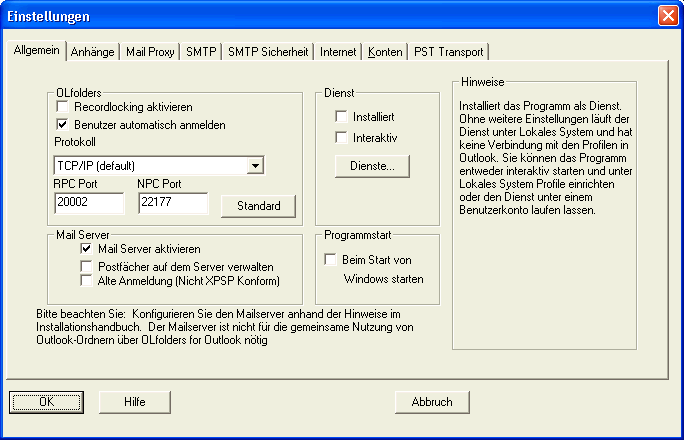
Installation of service
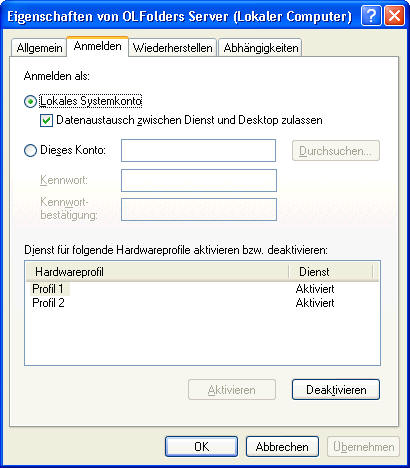
You need to specify a user account in
order to access existing Outlook profile.
Even if the server runs under the same
user account, it probably (depending on the Outlook version)
will not be able to access the same data file as any Outlook
running as application. Though the user name is the same,
you have two different log ons to windows, this is the same
as if two users log on using the terminal server at the
same server, both are unable to work on the same file.
3.1 How do I receive emails with OLfolders?
If OLfolders is installed, all functions
of Outlook remain the same, you still have your local personal
folders file, your local email account etc. The OLfolders
folder is visible additionally.
If you want to work with common email
addresses, for example info@, sales@, mail@ you might probably
want the server to receive the emails so that everybody
isable to see them. There are two choices:
- Configure Outlook at the server to
receive info@, sales@ etc.
If you are running Outlook 97/98/2000 in workgroup mode,
the MAPI spooler will be responsible for receiving the
emails, this works even if Outlook is not started.
From Outlook 2002 on, there is no separate MAPI spooler
application, Outlook must be started to receive and
send emails.
- You may configure the mail proxy
and use PST transport to pass incomming emails to folders
into any Outlook data file.
There are many way of how to configure
email in Outlook with OLfolders. In order to find why it
is not sending, first you need to find out how email is
configured.
- You receive the error messge "the
service provider does not support this operation".
You have configured an OLfolders folder as default folder
but not checked "support for local email account" or
you are running an old version of OLfolders.
- You are using a local personal folders
file with a local email account.
Email transport does not use OLfolders in any way, something
in your email configuration is wrong.
- You configured a local email account
in Outlook 2000
After configuring an email account, you need to re-start
Outlook 2000 and all MAPI applications, also the MAPI
Spooler. Eventually you need to end the program MAPISP32
using the task manager, then re-start Outlook.
- OLfolders is default folder the email
account is at the server.
Emails keep sitting in the Outbox until you press send/receive
in Outlook at the server.
In OLfolders options, check "server side support for
pst files", this will instruct OLfolders to pass on
the send command to the local Outlook installed at the
server.
If you are sending via PST transport, you probably do
not have a log on with the correct user name, OLfolders
will send everything in the Outbox next time it goes
online.
Top of page
You need to configure OLfolders or Outlook
at the server to receive all common email accounts, you
now can see all common emails in the OLfolders folder and
answer them with Outlook. Normally Outlook will take your
personal email address as sender email address. If you have
Outlook 2002 or 2003 you can configure a new email account
only for sending emails (leave POP3 empty).
Do not try to configure the same email
account in more than one Outlook, depending on the time
emails are received by any of your Outlooks, the email will
go sometimes here, sometimes there sometimes to both
clients, sometimes you will receive an error message.
You also must now, which email is answered,
Outlook automatically modifies the icon if emails are anwered
or forwarded. Also it is a good practice to mark emails
as unread if you read an email but do not like to answer
it because you want to leave it for everybody else to answer.
You may download and install QSearchFolders
which automatically creates a view of for example unanswered
emails.
- If you want to have all responses
at the server, you need either set up a rule in Outlook
or manually move messages from the local sent items
to the shared sent items folder.
A mail proxy does the same as your internet
service provider with emails, but in small. The mail proxy
receives emails and sends emails, clients can connect to
the mail proxy using the standard internet mail protocol
pop3 and smtp. The advantage of the mail proxy are:
- Internal emails will not go to the
internet but will be transported directly to the other
mail box.
Outlooks can be configured to transport emails every
minute. Internal emails will arrive in one minute instead
of for example 20 minutes.
The mail proxy can be configured to connect to the internet
for example every 10 minutes or every hour depending
on what kind of internet connection you have.
- The mail proxy is able to filter
almost all virus mails and many spam emails.
- The mail proxy is able to deliver
emails directly to a personal folders file and send
all emails it finds in an outbox.
Yes, if you are running OLfolders 2.3.6
or newer, you can simply move the file to the server and
use it with your local email account.
Alternativly you can use the PST transport
or the MAPI Spooler at the server to send/receive your emails,
this way you will not be able to the rules assistant, but
your emails will be delivered to your mailbox even if your
Outlook is not running.
Probably previously you have received
emails from this account with more than one client, eventually
checking leave email at the server. In this way each user
gets a copy of the email and nobody knows which of them
is answered and which is not answered.
With OLfolders you are able to configure
exactly one email account at one computer, everybody else
connects to the same data file. Emails are received only
once, if somebody answers an email, the icon changes at
all workstations, if somebody reads an email, the email
changes the read state at all workstations etc.
- If you addiationally have a personal
email address and personal email folder, simply connect
to the computer receiving the common email account and
look in both inbox folders.
- If you do not have a personal email
address and a personal email folder, connect to the
computer and set the OLfolders folder as default folder.
Do not configure an email account at the client.
If you are using Outlook 2002 or 2003, you need to configure
a dummy email account, otherwise the send button will
not be visible.
At the server, check "server support for pst files",
this will pass on the "send" command to the outlook
running at the server.
The client does not need an email account because all
sending/receiving is done already by the server Outlook,
sending or receiving duplicate is not a good idea.
Top of page
I want my secretary to use my calendar
and create new appointments.
- If you computer is always online.
Install OLfolders server at your computer and share
your data.
- If you computer is sometimes offline.
Move your personal folders file to the server, at the
server create a profile containing your personal folders.
Now you can connect with OLfolders to your personal
folders file at the server, using your personal email
account etc. The secretary can connect to the folders
even if you computer is offline.
- The computer is a laptop and sometims
out of office.
You must synchronize your calendar, for example with
QSync. QSync accepts the same license code as OLfolders,
one copy of QSync is included in each client, but must
be downloaded separatly.
At the server, create a new calendar folder, then configure
QSync to synchronize with this folder. Be aware that
synchronization may cause conflicts, for example if
both the secretary and you move the same appointment.
You will receive a notification on synchroniaztion.
Recurrences are not handled correctly by QSync, all
recurrences are stored as one element in Outlook in
a format which is not document. If you move one recurrence
item, the element is modified and copied to the other
side, completly with all recurrence entries.
A group calendar should contain all calendar
entries of all users. The problem is how to access them,
because normally calendar entries are stored in personal
folders files, laptops which may be out of office and so
on.
In order to create a group calendar, each
user should synchronize the private calendar into a single
folder at the server (folder type: appointment, name for
example group calendar). Normally, you would receive on
synchronization all appointments from all users, if you
do not like this, create a query in QSync, for example:
SenderName = "David User"
This will filter the calendar before synchronization, and
David User will receive only his elements. If you want the
secreatry create appointments for you, you need to create
any criteria which QSync can read, for example write "[David
User]" somewhere in the body or create a category "David
User". The Brackes "[" and "]" are used to prevent finding
the name in the text body for example "David Users sayed...",
you probably do not want this appiontment entry.
The query may be:
SenderName = "David User" or Categories
= "David User" or Body = substring ignorecase "[David User]"
Now that you have a group calender containing
all elements, you will discover that Outlook does not offer
any method of finding out to which user any entry belongs,
though the data is stored in all elements, there is no way,
not even on opening elements to find out the user. OLfolders
offers a user right for this: Show Names in Elements.
If Show Names in Elements is set, OLfolders
modifies the data on the way to the client, writing for
example
[David User] Appointment 1
This is too long for Outlook to display,
you can create abbrevations (click on "..." in folder rights,
show names in elements. The entry now may be shown as
DU-Appointment 1
I expect this is an error in Outlook which
in some conditions occurs. We tried to find out what exactly
happens then discovered that the error also occurs without
OLfolders but with a second personal folders file.
The elements are saved, all free-busy
lists also are correctly updated, then Outlook displays
the error message, wanting to do something on some server,
probably Exchange Server. Maybe some of the data structures
in the pst file are wrong.
We wrote a program which is supressing
this error message you can find it in the OLfolders start
menu under tools/fbclick.
Outlook is not supporting reminders in
shared folders. Reminders only can occur in the default
calendar, appointments and in the inbox.
QSynchronization - If you are using Outlook 2002 or 2003
probably it is disabled. Check Help/About Outlook, then
click on deactivated elements.
|


 German